
Fulfillment guide
Connect stock, coverage, schedules and capacity for delivery or pickup.
On this page
Customer flow
Choose a method to follow its checkout steps.
Choose a method
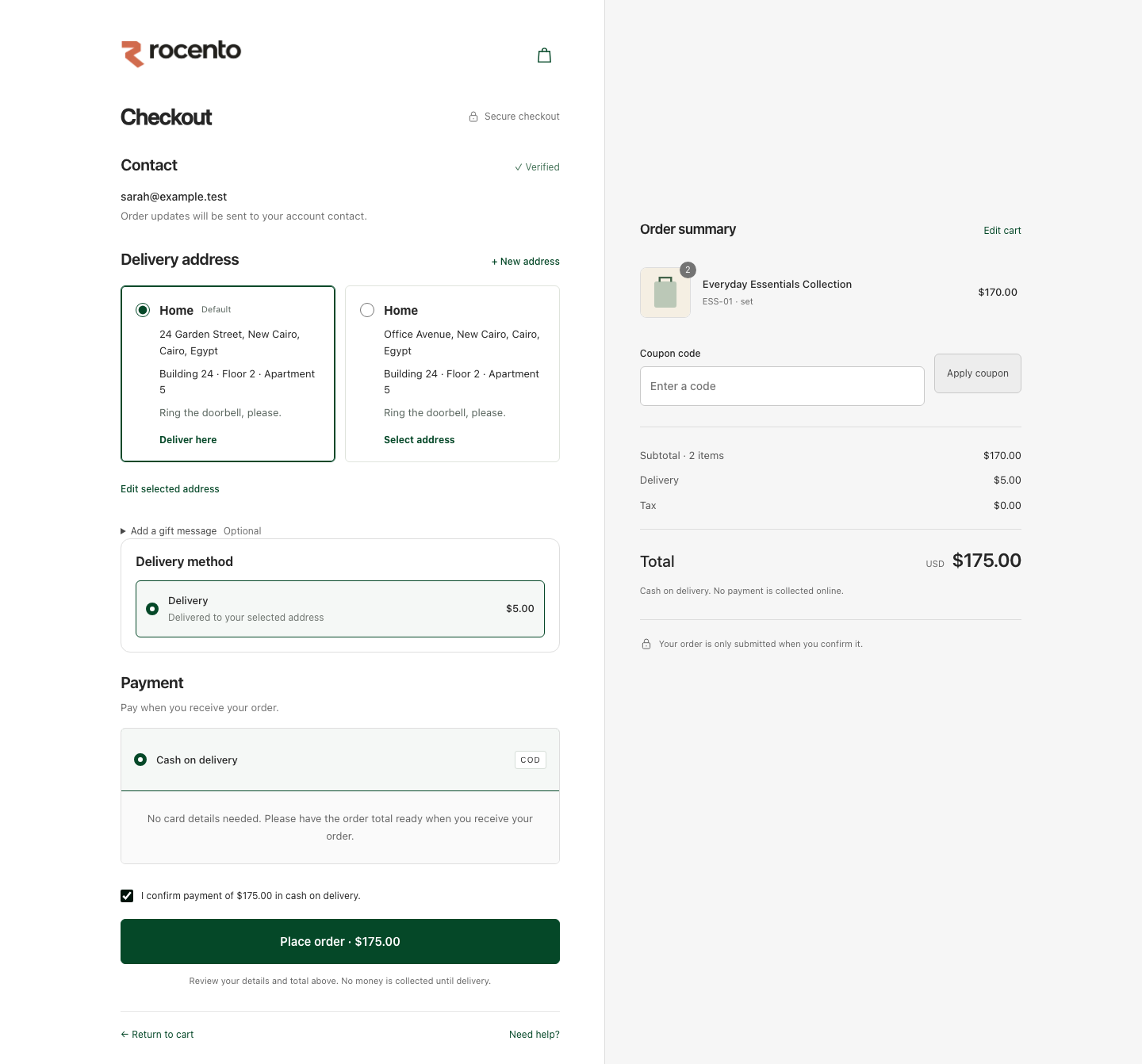
Enable delivery and select a delivery address.
Store policyCheck coverage & stock
Check address coverage and available stock.
Locations + stock pools + inventoryBuild a fulfillment plan
Choose a source automatically or let the customer choose. Splits require multi-source fulfillment.
Store policy + inventory routingFind a time
Use ASAP without a future window, or scheduling with a chosen or automatically assigned window.
SchedulesCheck operational limits
When capacity is enabled, check every matching location and shared limit.
Capacity rulesReview & place order
Review timing and totals, then place the order.
Checkout → Orders
Module reference
Menu locations vary by Admin version. Access depends on your role.
Store policy
Enable delivery, pickup, scheduling and routing. Store overrides replace inherited defaults.
System → Configuration → Delivery & pickup settings
Delivery and pickup configurationLocations
Open a branch or warehouse, select its store, and configure pickup availability, instructions and preparation time. Manage product quantities separately.
Inventory → Locations
Inventory locationsStock pools
Group locations into sellable inventory. Lower priority numbers are deducted first; default stock serves storefront carts.
Inventory → Stock pools
Stock pools and availabilityInventory & replenishment
Track on-hand, reserved and available quantities. Use replenishment to maintain stock.
Inventory → Stock overview
Inventory operationsService areas
Choose global delivery, map boundaries or city restrictions. Global delivery uses global and default stock; schedules and capacity still apply.
Delivery & pickup → Service areas
Delivery coverageSchedules
Set windows, timezone, lead time, cutoffs and exceptions. Delivery and pickup use separate calendars.
Delivery & pickup → Scheduling & capacity
Scheduling delivery and pickupCapacity rules
Limit orders, items, units, weight or workload. Every matching location and shared limit applies.
Delivery & pickup → Scheduling & capacity
Capacity managementOrders
Manage confirmed orders in Sales. Inspect bookings and temporary holds in Scheduling & capacity.
Sales → Orders
Checkout and ordersGlobal stock and delivery
Global stock makes inventory available worldwide. Global delivery coverage separately enables worldwide addresses.
Split orders
Coordinate capacity across sources. Require one shared window or allow separate windows per package.
Checkout holds
Optional holds reserve capacity temporarily. Without holds, enabled limits are checked at order placement. A hold can expire; an order is confirmed.
Recommended setup order
- Create locations and assign them to stock pools.
- Add quantities; set default stock and any global pools.
- Enable methods; configure coverage, routing and pickup instructions.
- Add calendars for scheduled delivery or pickup.
- Set limits; enable capacity and optional checkout holds.
- Test checkout. Verify the source, time, totals and order.
Troubleshooting
Pickup is not offered
Enable pickup for both store and location. Check available stock and any required pickup windows.
An address cannot receive delivery
Check delivery settings, coverage and stock. Without global delivery or map boundaries, an empty city list accepts saved addresses using default stock.
No time windows are available
Check method, location, timezone, calendars, lead time, cutoffs and exceptions. Then check stock and capacity.
Stock exists but checkout cannot proceed
Check available quantities, source assignments, routing and coverage. On-hand stock may already be reserved.
A window is full or over capacity
Review bookings, holds and shared limits. Lowering a limit blocks new bookings without cancelling existing commitments.